I created several workflows on OpenRPA in windows 11 pro to automate an old portuguese ERP made in Foxpro called Cegid PHC. they all work very well.
When setting up in a production environement in windows server 2022 none of the workflows worked. the image based components work but the UIA dont.
All tested using scaling at 100% at the console without minimizing, with admin rights. same language and with all udates. using OpenRPA version 1.4.57
Tested with a brand new windows server 2022 in the same Virtualbox environement as the windows 11 and the same hapens.
Simple way to replicate:
- With the relevant ERP window open do a record of a selection of a field.
- Replay works, selector highlits and if i do a selector sync i can find the relevant field
- Close and reopen OpenRPA the workflow fails (With the aplication still opened in the same window). highlight fails and selector sync doesnt find the relevant fields.
- at this stage with the selector open if i choose select and just hoover over the field and press escape without selecting anithing and closing the selector without saving, the selector now works for this field and for all other selectors and the sync finds the fields.
- now the workflow works.
- if using acessibility insights i can always find the fields.
weeks hammering my head. production environement needs to be on windows server. i cant find a way arround this. is this a limitation on windows server environements for old foxpro aplications?
any ideas?
Thanks
There’s no UIA limitation specific to Windows Server 2022 that I’m aware of, and I can’t test this across different Windows versions myself (I only have a Win10 VM here). But the behavior you’re describing, where a manual hover makes the field (and then all the other fields) start resolving for the rest of the session, points at caching rather than anything Server-specific.
OpenRPA uses its own element cache to make tree walks fast (the default UIA/FlaUI caching is slow for this, so OpenRPA builds its own). The downside is that on a cold session the cache is empty, and with an old FoxPro app like Cegid PHC the first lookups can miss until something forces the element to actually be resolved and cached. Your manual hover is doing exactly that: it resolves the element, it lands in the cache, and from then on every selector and the sync find the fields. That also fits why image-based steps always work (they don’t touch the element cache at all) and why Accessibility Insights always finds the fields (it resolves them fresh every time, no cache involved).
Two things to try:
-
Warm the cache at flow start. Add a “get element” as the very first activity, pointed at a field-level element inside the ERP (not just the top window, it needs to walk into the tree like your real selectors do), and set Min items to 0 so it doesn’t throw when the cold first pass finds nothing. This mimics what your manual hover does, so the elements are resolved and cached before the real work starts.
-
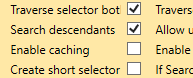
If that doesn’t fully fix it, try disabling the cache. This is the usual workaround when the cache is the culprit. ( settings Fair warning: it makes OpenRPA a lot slower, so it’s more of a diagnostic / fallback than a permanent setup. If disabling it makes the cold-start problem go away, you’ve confirmed the cache is the cause and can decide on the tradeoff. ( Go to settings → Recorder plugins → Windows and disable caching
 )
)
To validate either way: reboot the server, open the ERP, run the flow once without manually hovering anywhere, and see whether the warm-up step alone (or the cache disabled) makes it pass on a truly cold start.
Thanks for your quick reply on this!
On a new session, Accessibility Insights finds the field immediately all fields are shown imediately.
Disabling the Windows cache did not help (even rebooted the server to make sure)
OpenRPA’s GetElement still returns nothing even with a warmup to a field on the PHC window (tried with MinResults=0 and MinResults=1 so it keeps triying for 30 seconds)
Only a when I do a manual Select/hover on the field, after which every selector resolves for the rest of the session.
What does OpenRPA’s GetElement do differently from a plain Select/hover?
again this only hapens in Windows server not in Windows 11
When OpenRPA runs, it creates a hook into Windows that notifies it every time you move your mouse. While not recording (and not having a Windows detector running), it simply exits and returns the mouse to Windows. But while recording, it creates a loop that continuously asks Windows what windows element is under the mouse. It then creates an OpenRPA.Interfaces.IElement of that object and sends this to the part of the code that requested recording. Typically, this then gets sent to the function that creates the green overlay by reading the position of the object.
When you click with your mouse, it reads all the properties and traverses all parents of the object until it finds the Desktop, mapping all properties and trying to create a selector based on that. It then validates that selector by trying to find the element from the desktop starting point again and, if successful, adds the element to the recording cache OR the workflow designer, depending on your settings.
There is one very niche variation from the above. To fix issues when automating Axapta that “breaks” the tree, there is a special mouse-over version where OpenRPA can move the mouse to a special point and then search backward during playback. However, in 99.9% of cases, you start by searching from the desktop and down the tree.
Installed windows server 2025 and the flows work nicely like in windows 11.
So this issue is only present in windows server 2022 (for whatever reason). maybe all this testing will help someone else not going 2022 way…
Thank you again for taking the time helping me with your feedback. great product you developed, its extremely flexible and can make life easier for a lot of companies without having go UiPath way!
Fred
Oh, that is good information. Thank you for sharing, and I’m glad you found a solution.